MFA Setup Procedures
1. Navigate to Microsoft Security Info
2. Login with your CNA account and password
CNA Format for Staff: xxx@vtc.edu.hk
CNA Format for Student: xxx@stu.vtc.edu.hk
3. If you are setting up MFA within VTC Network, follow the below instructions
3.1. Click "Add Sign-in method"

3.2. Select "Microsoft Authenticator"

4. If you are setting up MFA outside of VTC Network, follow the below instructions
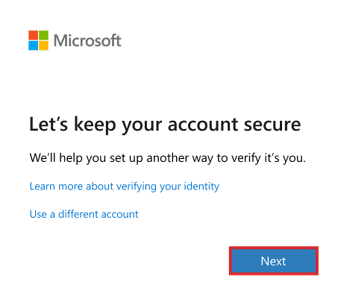
4.1. You will be prompted to setup MFA method. Click "Next"
5. Depending on the brand of your mobile device, install Microsoft Authenticator from the App Store or Google Play Store

6. The default method will be Microsoft Authenticator. Keep it unchanged and click "Next"
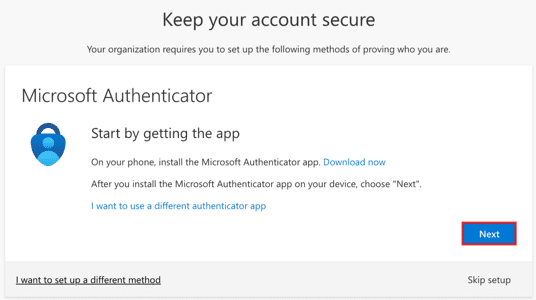
7. Click "Next"
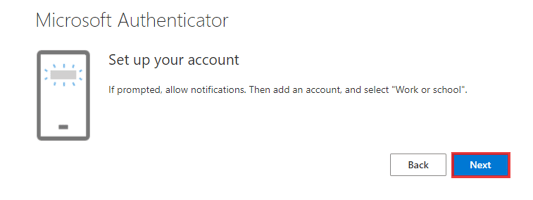
8. A QR code will appear on the screen

9. Open the Microsoft Authenticator App on your mobile device and scan the QR code. Then click "Next" in your screen
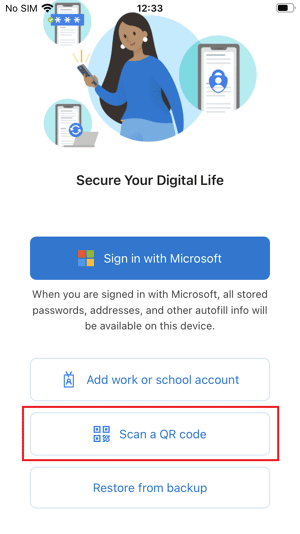
10. Enter the number displayed on your screen into your Microsoft Authenticator App. Then click "Yes"

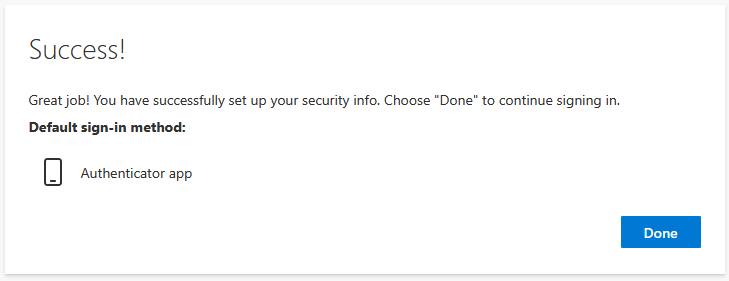
11. You have now successfully setup your Multi-Factor Authentication (MFA) using Microsoft Authenticator. Click "Next" to complete the process

1. Navigate to Microsoft Security Info
2. Login with your CNA account and password
CNA Format for Staff: xxx@vtc.edu.hk
CNA Format for Student: xxx@stu.vtc.edu.hk
3. If you are setting up MFA within VTC Network, follow the below instructions
3.1. Click "Add Sign-in method"
3.2. Select "Microsoft Authenticator"
4. If you are setting up MFA outside of VTC Network, follow the below instructions
4.1. You will be prompted to setup MFA method. Click "Next"
5. Depending on the brand of your mobile device, install 3rd party authenticator application (E.g. Google Authenticator, Authy, 1Password etc.) from the App Store or Google Play Store
6. The default method will be Microsoft Authenticator. Click "I want to use a different authenticator app" to register with 3rd party authenticator applications

7. Click "Next"

8. A QR code will appear on the screen
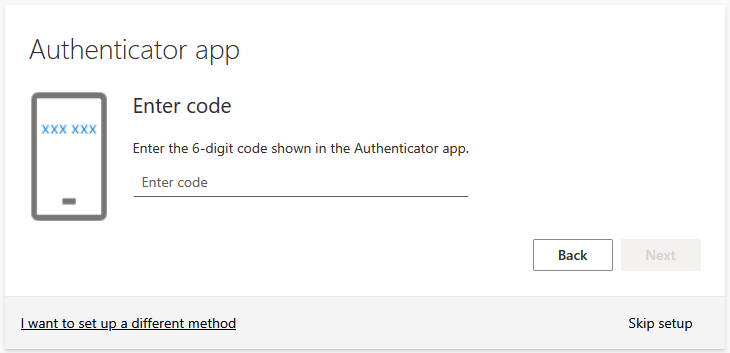
9. Open the 3rd party Authenticator App on your mobile device and scan the QR code. Then click "Next" in your screen
10. Enter the 6-digit code in your Authenticator App. Then click "Next"
11. You have now successfully setup your Multi-Factor Authentication (MFA) using 3rd Party Authenticator. Click "Next" to complete the process